

How credits work
The credit system has three components:- Credit packages: bundles of credits that clients purchase (for example, 500 credits for $50).
- Conversion rates: rules that convert a service’s currency price into credits (for example, 1 USD = 10 credits).
- Credit balance: the credits available to a client to spend on services or invoices.
$3.51 × 10 = 35.1 credits → rounded up to 36 credits
AgencyHandy always rounds up to the nearest whole credit.
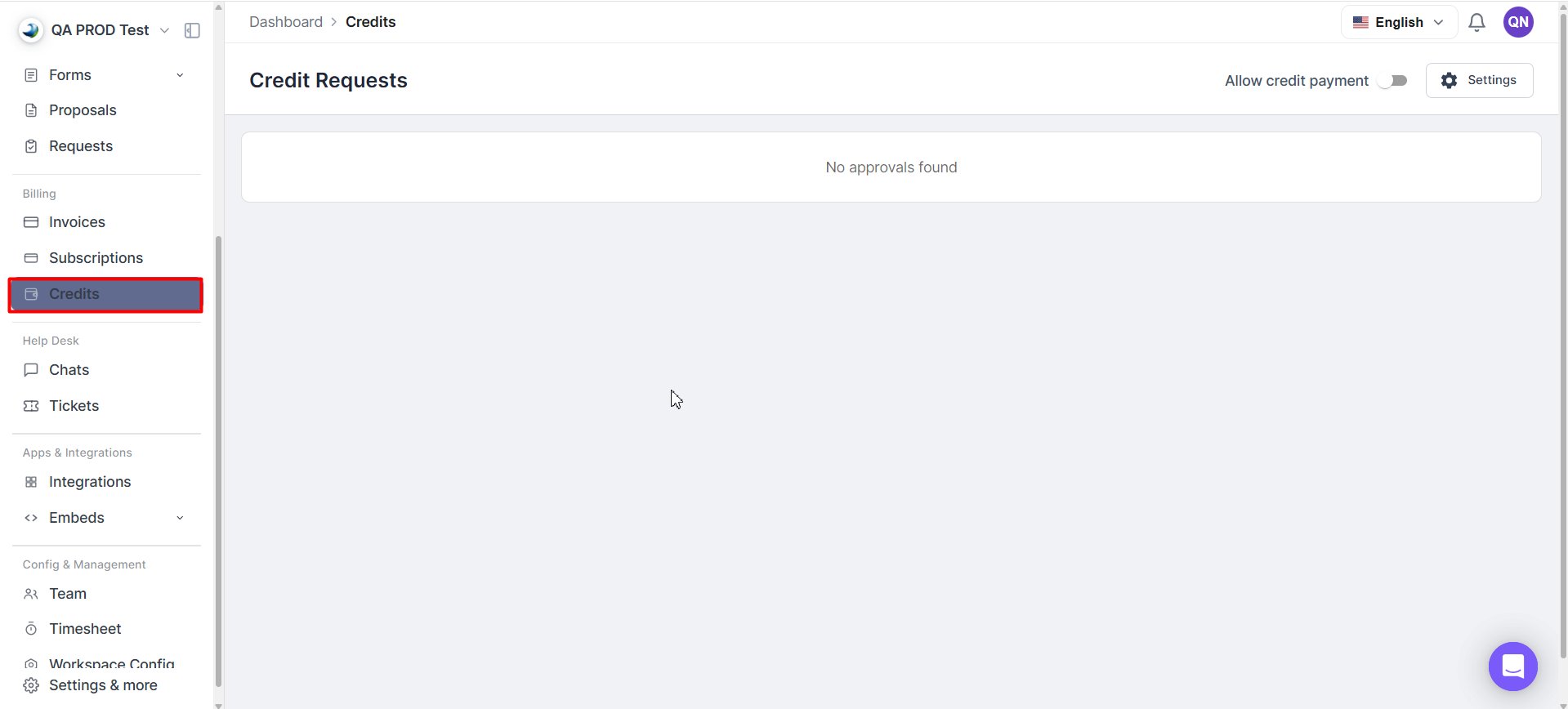
Credit Page
Enable credit payments
Before clients can purchase or use credits, you must turn the feature on.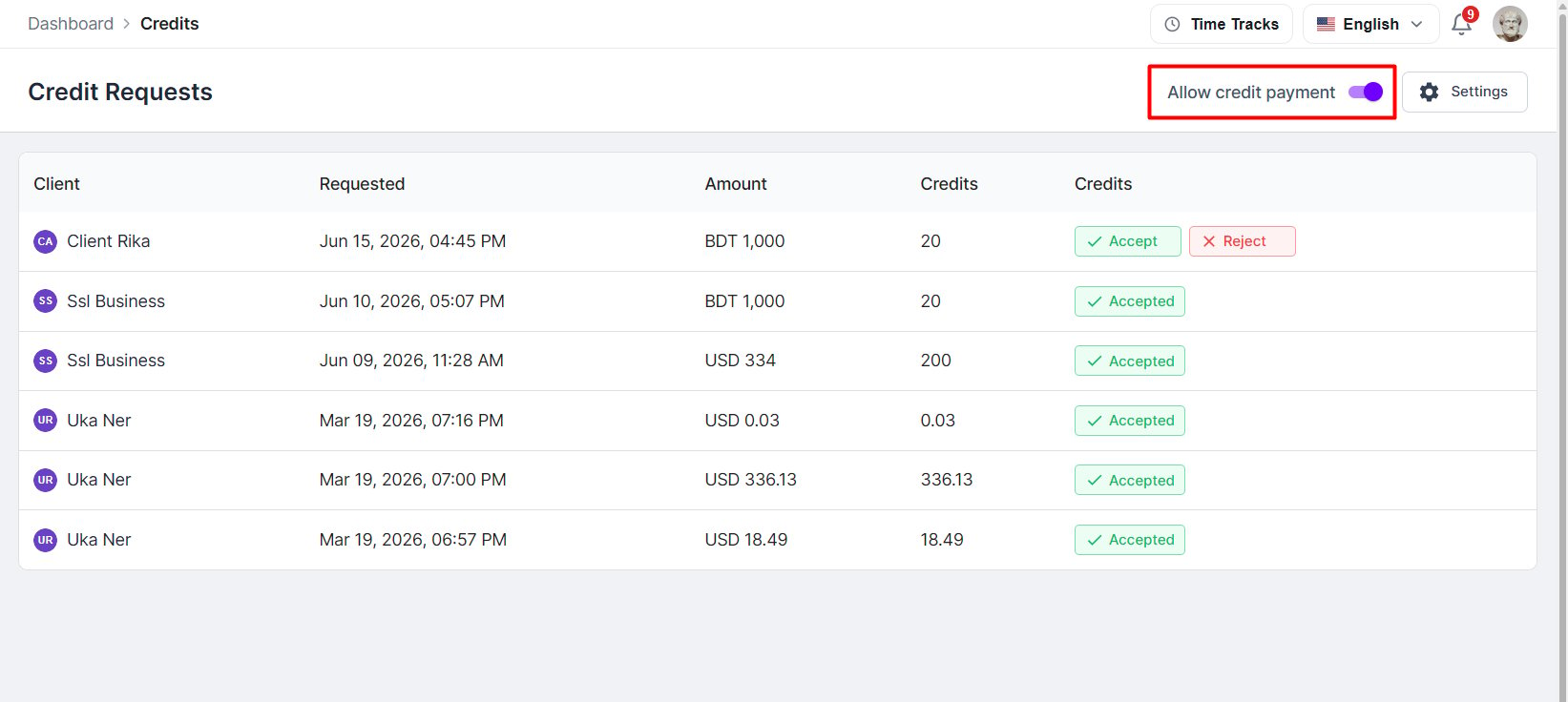
Toggle to turn on credit payment
When enabled, clients can:- See their credit balance widget in the client portal.
- Access the Credits page and purchase packages.
- Submit credit requests.
- Use Buy with Credit during service checkout.
- Use Pay with Credit on invoices.
Create credit packages
Credit packages are what clients purchase to load credits onto their account.Fill in the details
Enter a package name, the number of credits included, the currency, and the price.
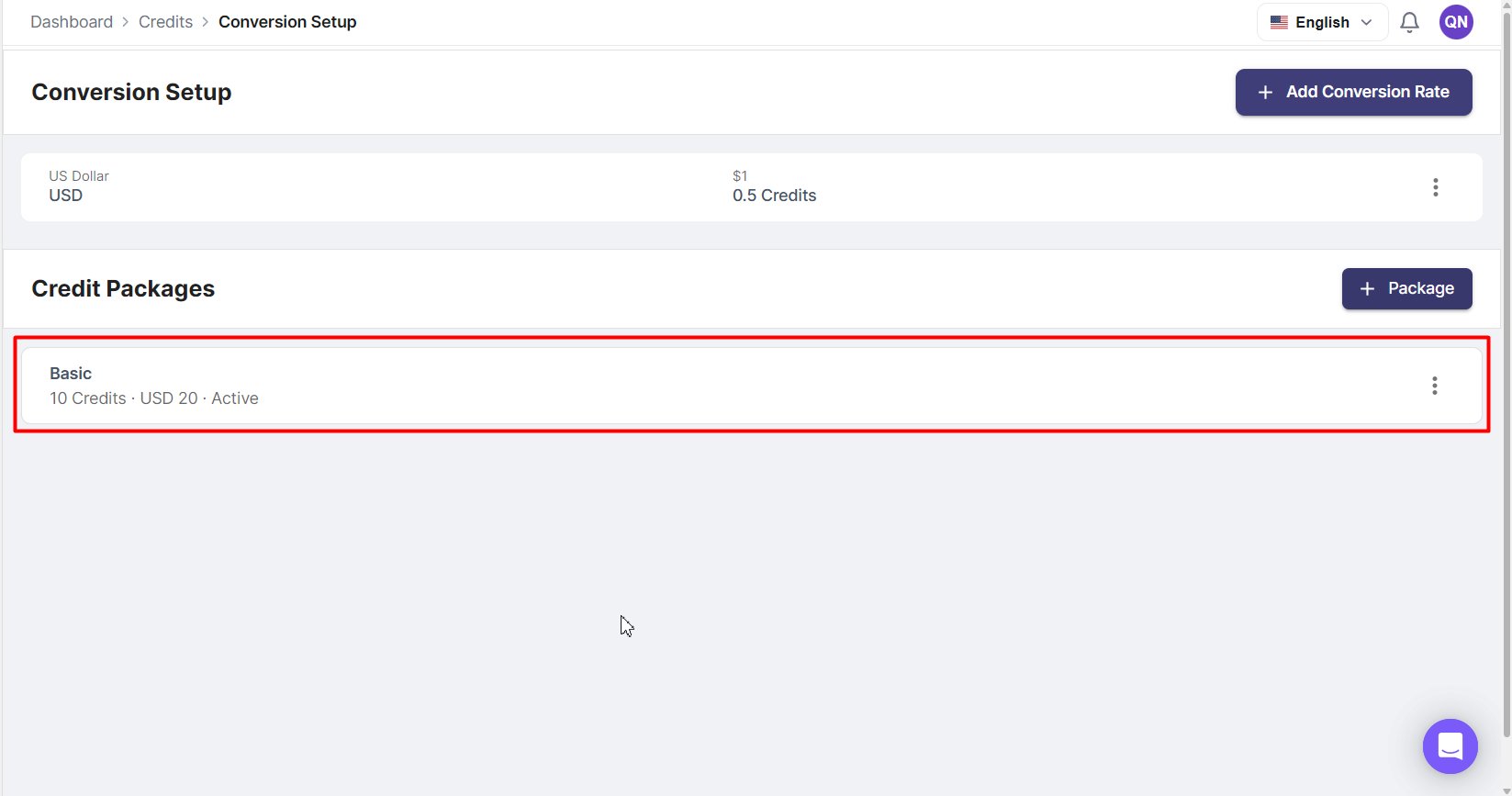
Credit Package List View
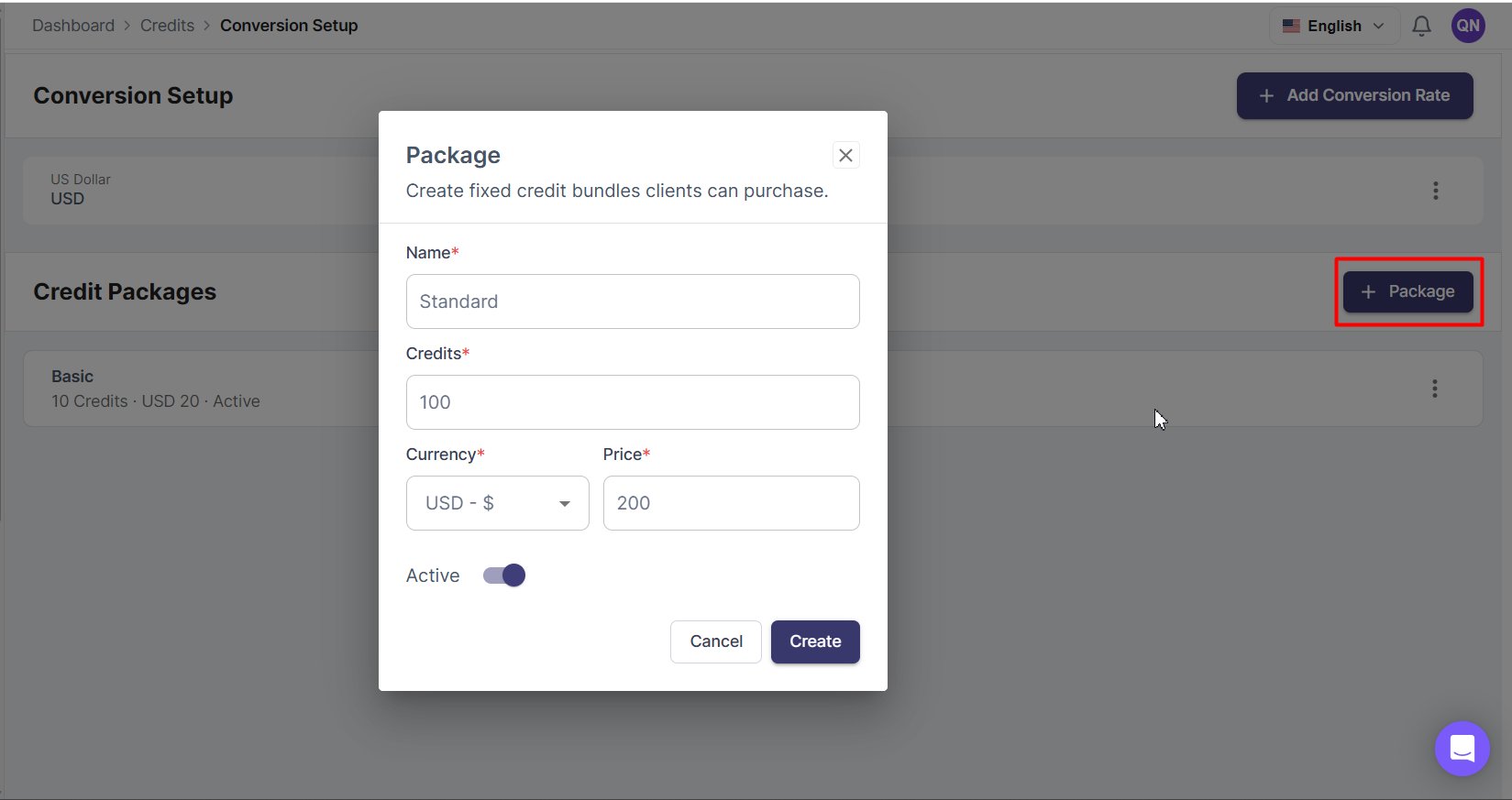
Create Credit Package
Manage conversion rates
Conversion rates determine how many credits are required for a service based on its currency price. You can set a different rate per currency.Configure the rate
Select a currency and enter the number of credits equivalent to one unit of that currency.
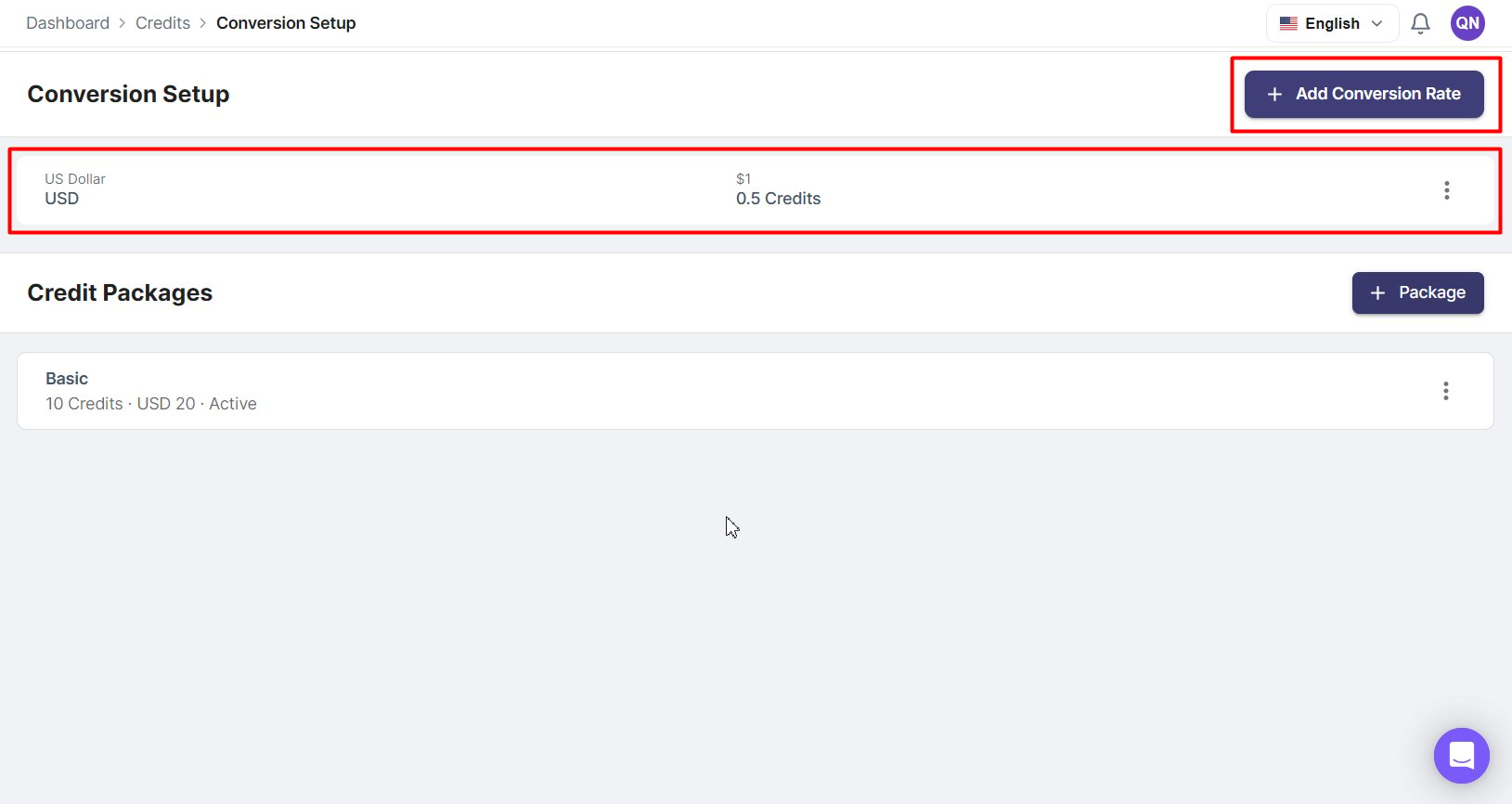
Conversion List Page
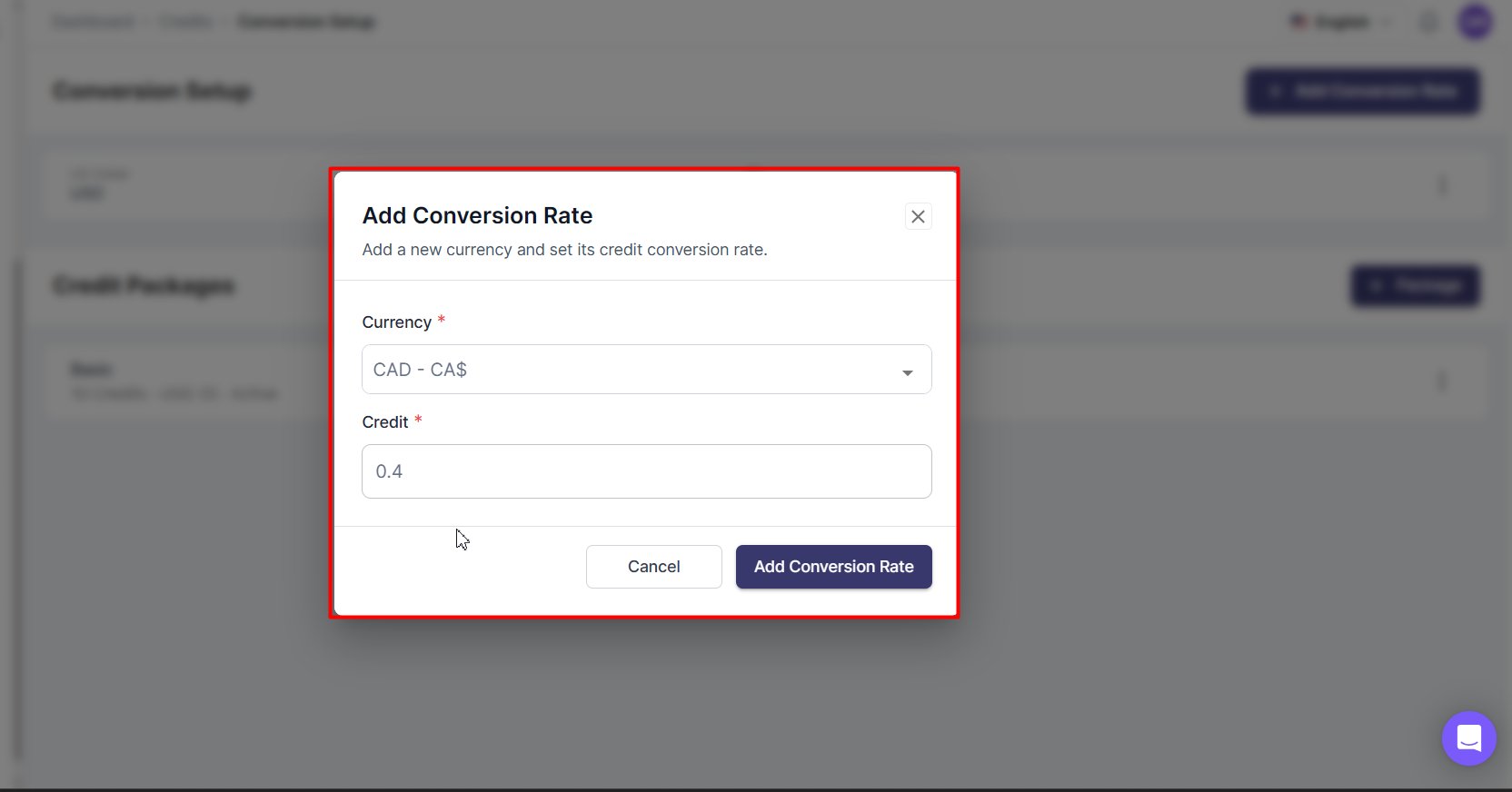
Add Conversion Rate Form
Example rates:| Currency | Rate |
|---|---|
| USD | 1 USD = 10 credits |
| EUR | 1 EUR = 9 credits |
| GBP | 1 GBP = 12 credits |
Only one active conversion rate can exist per currency at any given time.
Automatic vs manual credit purchases
How credits are added to a client’s account depends on the payment method used. Automatic (no approval needed):- Stripe
- PayPal
- Bank Transfer
- Cryptocurrency
Manage credit requests
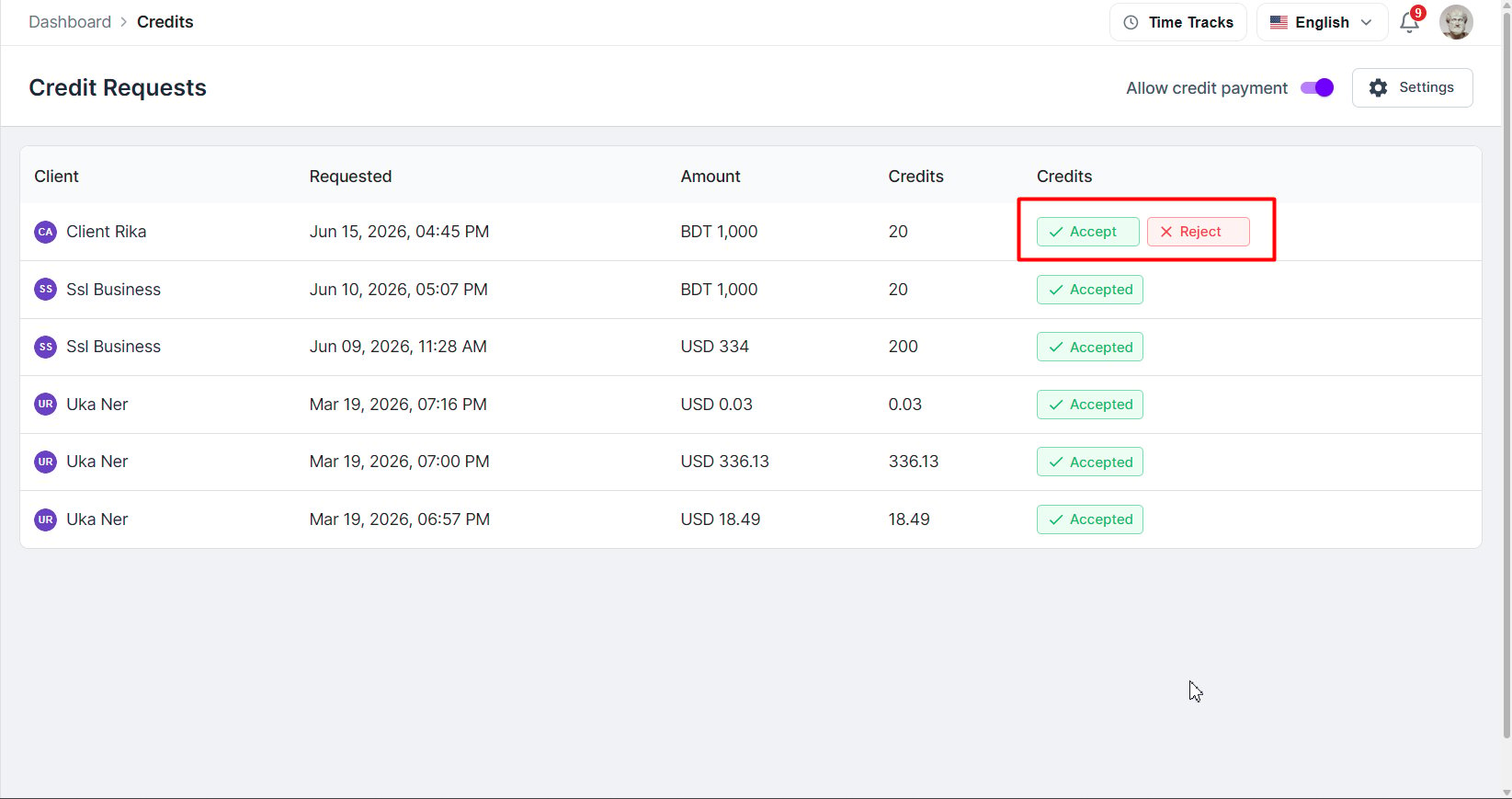
Credit Requests
Request statuses:- Pending: submitted and awaiting review.
- Accepted: approved; credits have been added to the client’s balance.
- Rejected: declined; no credits were added.
View client credits
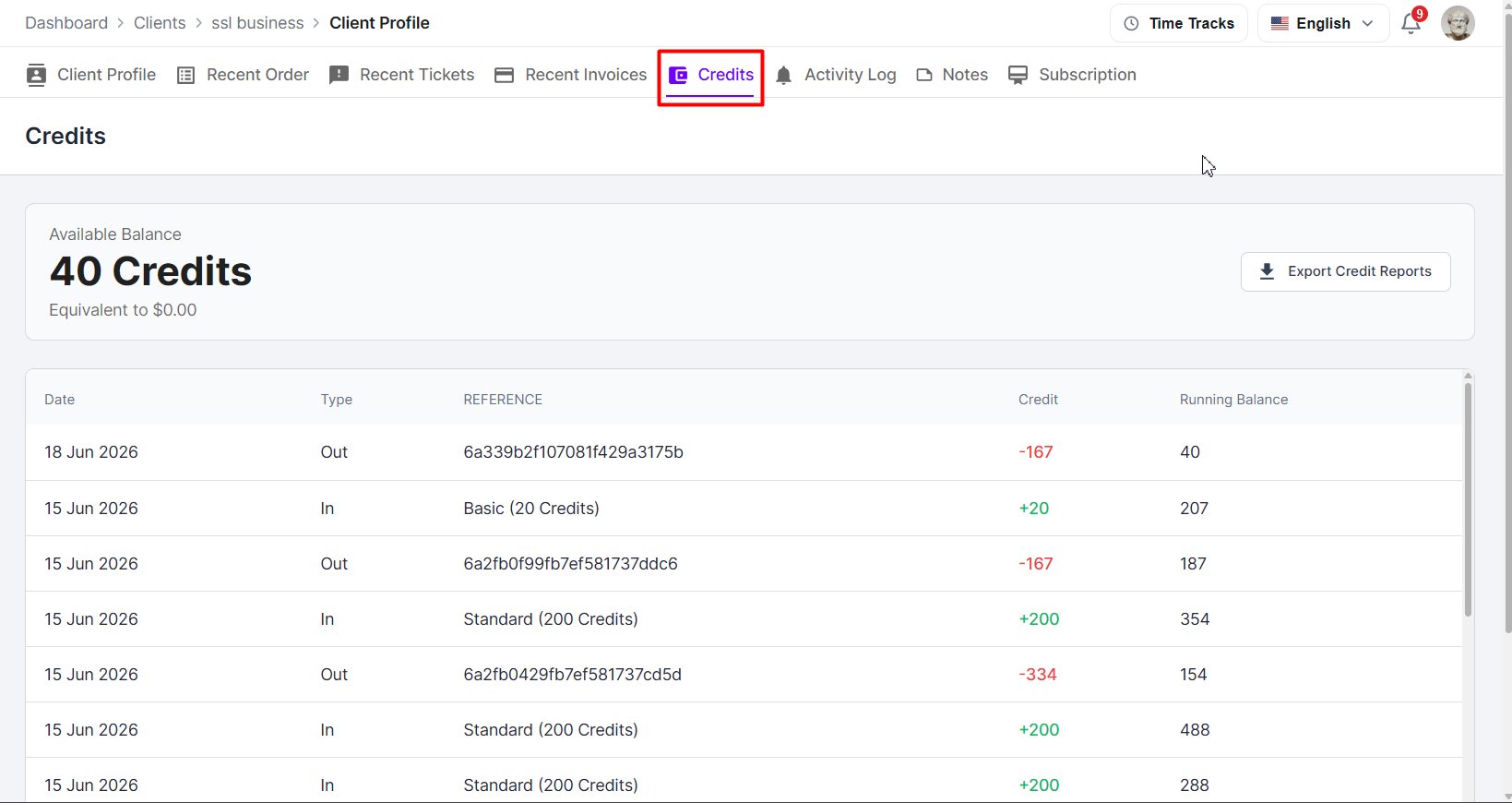
Viewing Client Credit
The Credits tab shows the client’s available balance, full transaction history, running balance, and transaction references.Understand credit transactions
Every credit activity is recorded in the client’s transaction history. In: credits added to the account:- Credit package purchase
- Approved credit request
- Service purchased using credits
- Invoice paid using credits
Frequently Asked Questions
Can clients purchase credits when credit payments are disabled?
Can clients purchase credits when credit payments are disabled?
No. Clients cannot purchase credits while the Allow Credit Payment toggle is disabled.
What happens to existing balances when credit payments are disabled?
What happens to existing balances when credit payments are disabled?
Existing balances remain unchanged. Clients simply cannot access or use the Credits feature until it is enabled again.
Are Stripe and PayPal purchases approved automatically?
Are Stripe and PayPal purchases approved automatically?
Yes. Credits purchased through Stripe and PayPal are added automatically after successful payment.
Do Bank Transfer and Cryptocurrency purchases require approval?
Do Bank Transfer and Cryptocurrency purchases require approval?
Yes. These payment methods create a credit request that must be reviewed and approved by the agency.
Can agencies reject a credit request?
Can agencies reject a credit request?
Yes. Agencies can approve or reject any pending credit request.
Can agencies view a client's complete credit history?
Can agencies view a client's complete credit history?
Yes. Agencies can review a client’s balance and transaction history from the Credits tab within the client profile.
What do In and Out transaction types mean?
What do In and Out transaction types mean?
In indicates credits added to the client’s account.Out indicates credits deducted from the client’s account.
Why don't clients see the Buy with Credit option?
Why don't clients see the Buy with Credit option?
The agency may have disabled credit payments, or the client may not have sufficient credits available.
Why don't clients see the Pay with Credit option on invoices?
Why don't clients see the Pay with Credit option on invoices?
The agency may have disabled credit payments, or the client may not have sufficient credits available to cover the invoice amount.