> ## Documentation Index
> Fetch the complete documentation index at: https://docs.agencyhandy.com/llms.txt
> Use this file to discover all available pages before exploring further.

# Credits

> Purchase services and pay invoices using a prepaid credit balance: buy credits, track your balance, and manage credit requests.

Credits allow you to purchase services and pay invoices using a prepaid balance instead of making individual payments every time. You can purchase credits, track your available balance, view your transaction history, and use credits across the platform whenever credit payments are enabled by the agency.

## How credits work

Credits are purchased in advance and added to your account balance.

When you purchase a service or pay an invoice using credits:

* The required credits are deducted automatically.
* Your balance is updated instantly.
* The transaction is recorded in your credit history.

<Note>
  If the agency has disabled credit payments, credit-related features will not be available.
</Note>

## Viewing your credit balance

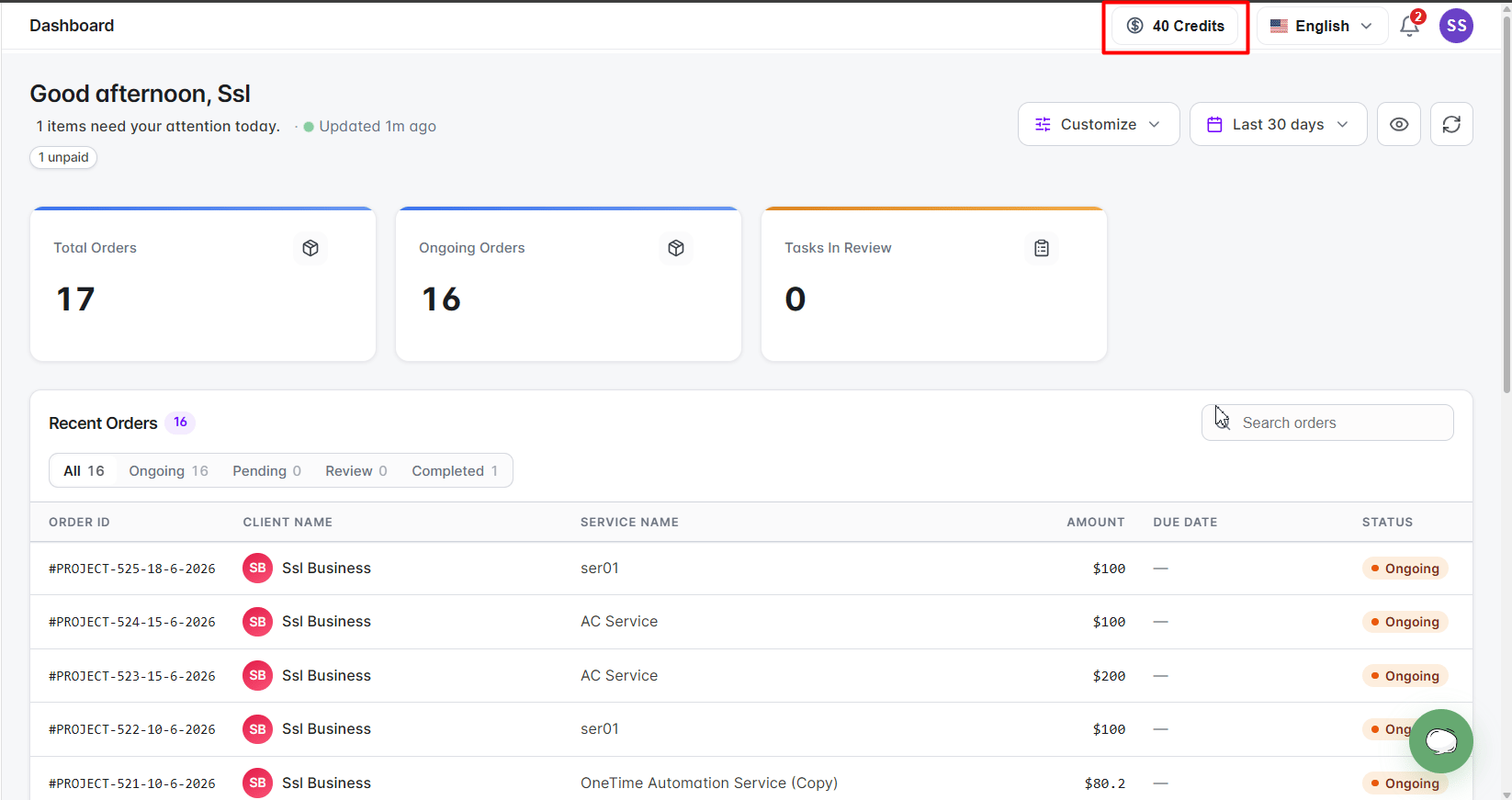
When credit payments are enabled by the agency, your available credit balance is displayed in the top navigation bar.

<img src="https://mintcdn.com/agencyhandy-36ccbd64/cRyyPqqchPNXUz0A/images/credits/client-credit-balance-widget.png?fit=max&auto=format&n=cRyyPqqchPNXUz0A&q=85&s=1c31aeec0bb38f7121b6022d779173e9" alt="Credit balance widget in the client portal header" width="1646" height="871" data-path="images/credits/client-credit-balance-widget.png" />

<p style={{textAlign: 'center'}}>*Credit balance widget displayed in the client portal header*</p>

### Accessing the Credits page

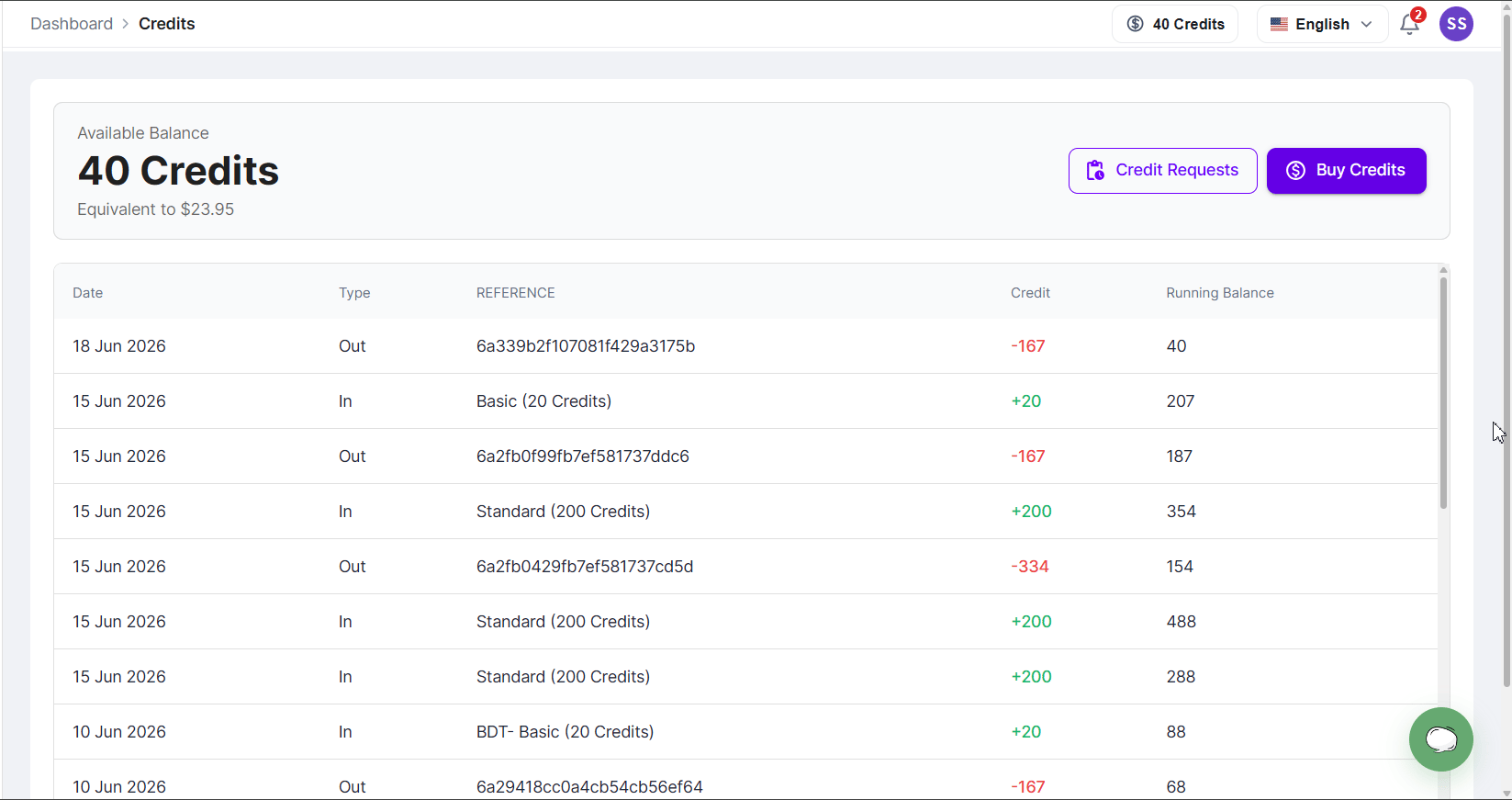
Click the credit balance widget to open the Credits page.

The Credits page provides:

* Available credit balance
* Transaction history
* Running balance
* Credit requests
* Buy Credits option
<img src="https://mintcdn.com/agencyhandy-36ccbd64/cRyyPqqchPNXUz0A/images/credits/client-credits-dashboard.png?fit=max&auto=format&n=cRyyPqqchPNXUz0A&q=85&s=6401a999a5d6f9f4ded53a98258eb396" alt="Credits dashboard page" width="1647" height="871" data-path="images/credits/client-credits-dashboard.png" />

<p style={{textAlign: 'center'}}>*Credits dashboard page*</p>

## Purchasing credits

You can purchase additional credits at any time using the **Buy Credits** button.
<Steps>
  <Step title="Open the Credits page">
    Click the credit balance widget in the top navigation bar.
  </Step>

  <Step title="Click Buy Credits">
    Select the **Buy Credits** button.
  </Step>

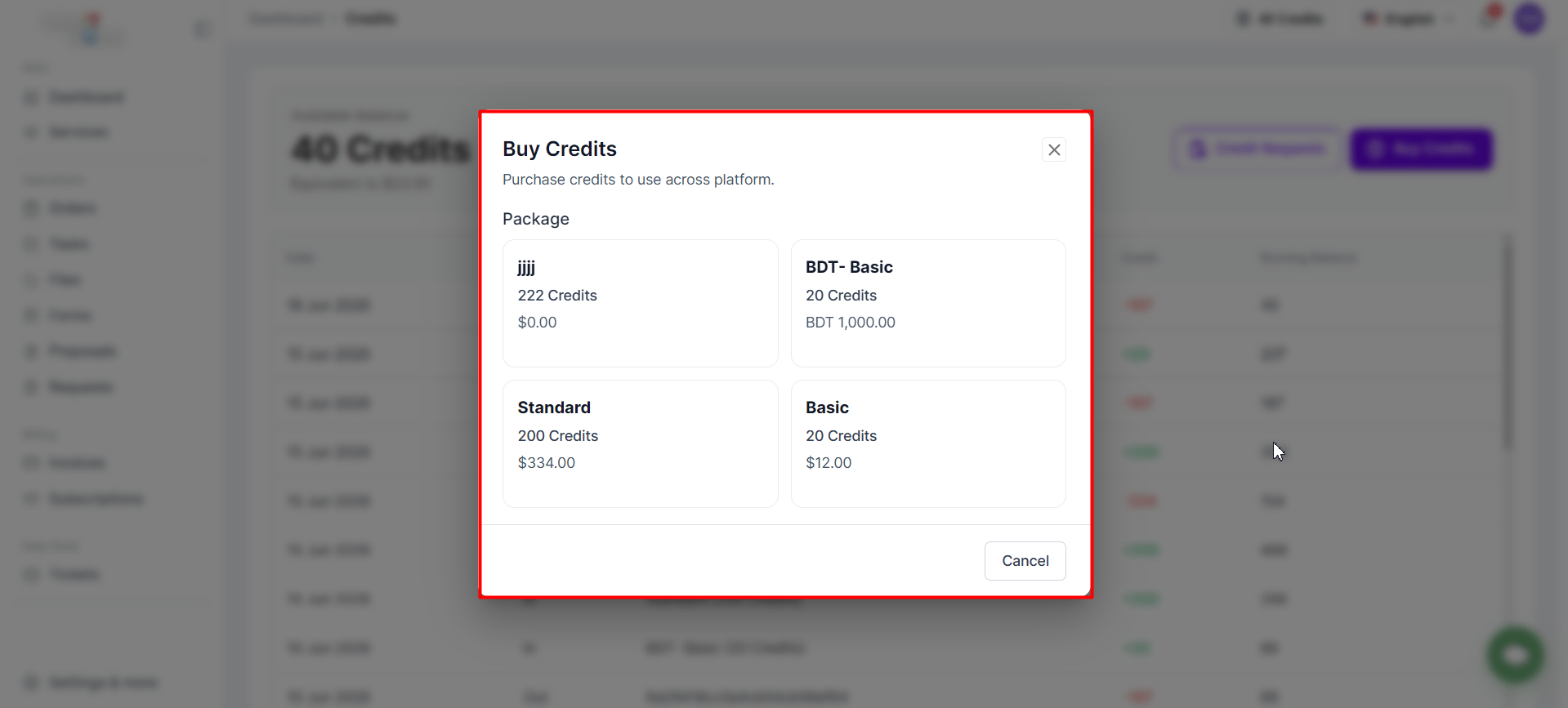
  <Step title="Select a package">
    Choose a credit package from the available options.
  </Step>

  <Step title="Choose a payment method">
    Select your preferred payment method.
  </Step>

  <Step title="Complete payment">
    Follow the payment process to finalize your purchase.
  </Step>
</Steps>

<img src="https://mintcdn.com/agencyhandy-36ccbd64/cRyyPqqchPNXUz0A/images/credits/client-buy-credits.png?fit=max&auto=format&n=cRyyPqqchPNXUz0A&q=85&s=0f1cc1bd115cbe6515bdc88d1e1f1607" alt="Buy Credits page showing available credit packages" width="1919" height="867" data-path="images/credits/client-buy-credits.png" />

<p style={{textAlign: 'center'}}>*Buy Credits page showing available credit packages*</p>

## Credit purchase methods

Different payment methods process credits differently.

### Instant credit purchases

Credits are added automatically after successful payment when using:

* Stripe
* PayPal

Once payment is confirmed, credits are added immediately, your balance is updated, and a transaction is recorded in your credit history.

### Manual credit purchases

Credits purchased using Bank Transfer or Cryptocurrency require agency approval before being added to your account.

After submitting payment:

1. A credit request is created.
2. The request is sent to the agency for review.
3. Credits are added only after the agency approves.

## Credit requests

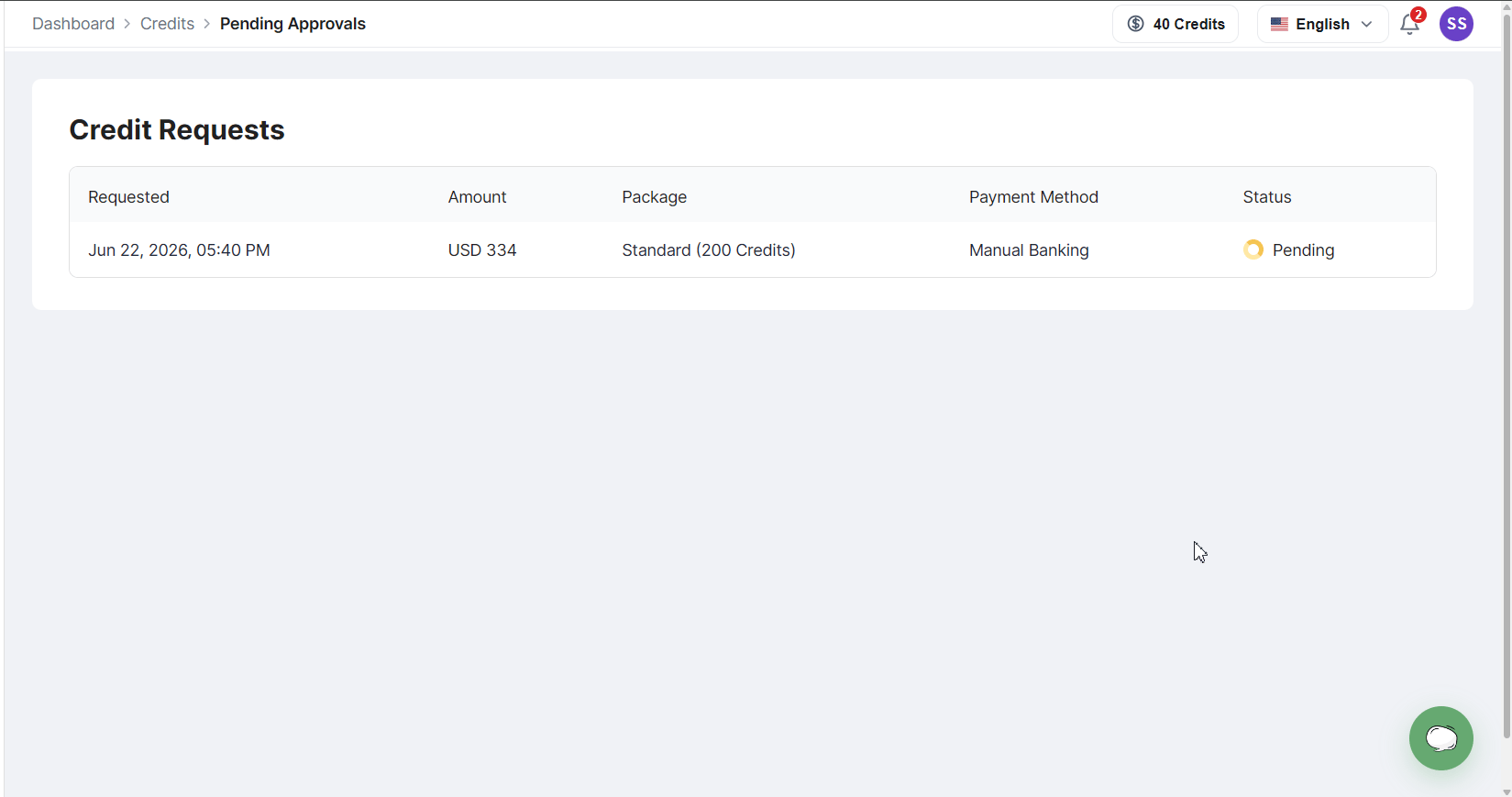
Credit Requests allow you to track purchases that require agency approval.
<Steps>
  <Step title="Open the Credits page">
    Click the credit balance widget in the top navigation bar.
  </Step>

  <Step title="View Credit Requests">
    Click **Credit Requests** to see the status of your pending and past requests.
  </Step>
</Steps>

<img src="https://mintcdn.com/agencyhandy-36ccbd64/cRyyPqqchPNXUz0A/images/credits/client-credit-requests.png?fit=max&auto=format&n=cRyyPqqchPNXUz0A&q=85&s=15678fcf49f8e57e55f93bb532f09e99" alt="Credit Requests page" width="1649" height="869" data-path="images/credits/client-credit-requests.png" />

<p style={{textAlign: 'center'}}>*Credit Requests page*</p>

**Request statuses:**

* **Pending**: your request has been submitted and is waiting for agency review.
* **Accepted**: the request has been approved and credits have been added to your balance.
* **Rejected**: the request has been declined and no credits have been added.

## Paying for services with credits

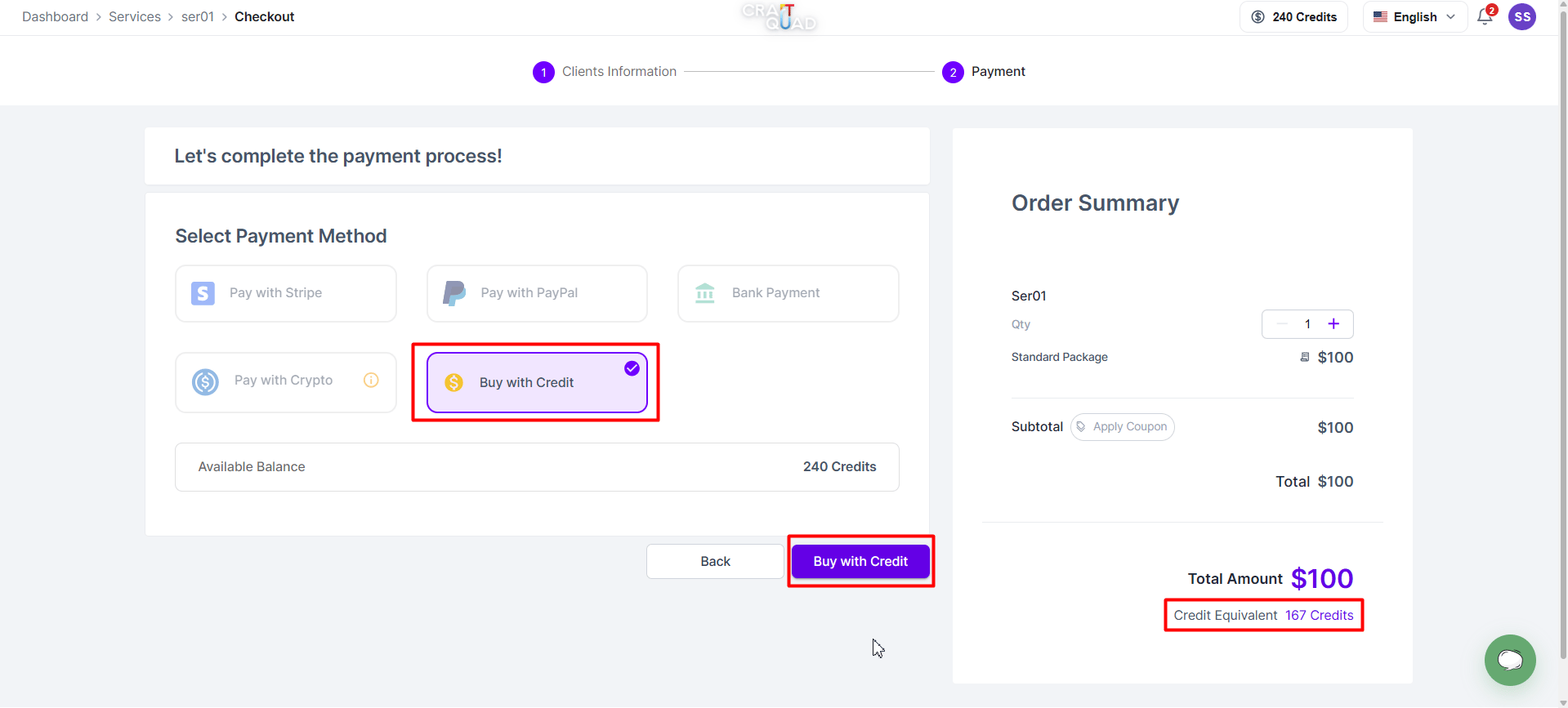
When credit payments are enabled and you have sufficient credits, you can purchase services using your credit balance.
<Steps>
  <Step title="Open the service">
    Navigate to the service you want to purchase.
  </Step>

  <Step title="Proceed to checkout">
    Start the checkout process for the service.
  </Step>

  <Step title="Select Buy with Credit">
    Choose the **Buy with Credit** option.
  </Step>

  <Step title="Complete the purchase">
    Confirm to finalize the purchase.
  </Step>
</Steps>

<img src="https://mintcdn.com/agencyhandy-36ccbd64/cRyyPqqchPNXUz0A/images/credits/client-buy-with-credit.png?fit=max&auto=format&n=cRyyPqqchPNXUz0A&q=85&s=26cf77ff6a1e60f7009e4e169b43deaf" alt="Service checkout showing the Buy with Credit option" width="1919" height="867" data-path="images/credits/client-buy-with-credit.png" />

<p style={{textAlign: 'center'}}>*Service checkout page showing the Buy with Credit option*</p>

Once the purchase is completed, credits are deducted automatically, your balance is updated instantly, and the transaction appears in your credit history.

**When Buy with Credit is not available:**

The **Buy with Credit** option will not appear if:

* The agency has disabled credit payments.
* You do not have enough credits.
* The service is not eligible for credit payments.

## Paying invoices with credits

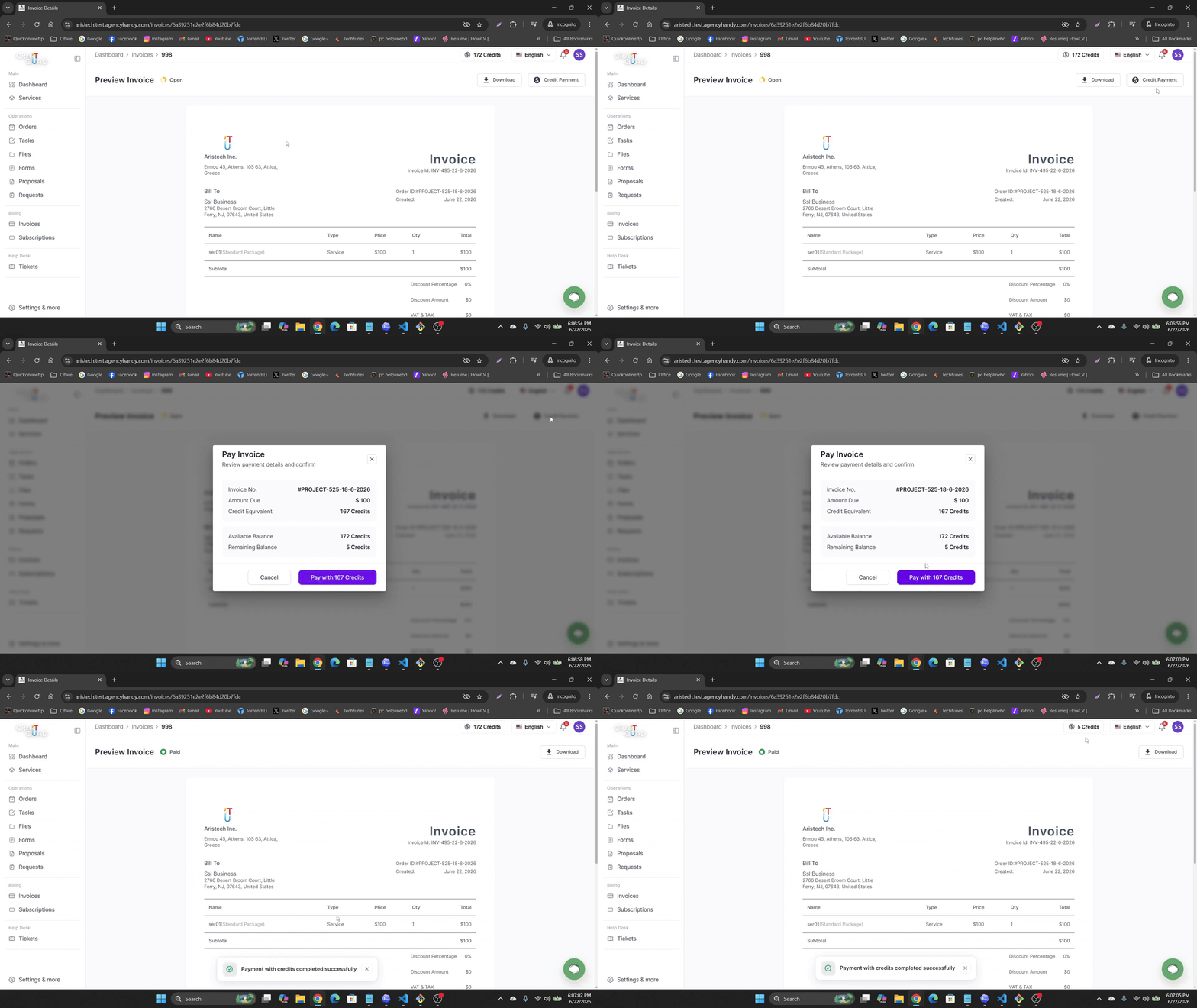
You can also use credits to pay outstanding invoices.
<Steps>
  <Step title="Open the invoice">
    Navigate to the invoice you want to pay.
  </Step>

  <Step title="Click Pay Invoice">
    Select the **Pay Invoice** button.
  </Step>

  <Step title="Select Pay with Credit">
    Choose the **Pay with Credit** option.
  </Step>

  <Step title="Confirm payment">
    Confirm to complete the payment.
  </Step>
</Steps>

<img src="https://mintcdn.com/agencyhandy-36ccbd64/cRyyPqqchPNXUz0A/images/credits/client-pay-with-credit.gif?s=53fc26f536e4115344a3854519905b1a" alt="Invoice payment page showing the Pay with Credit option" width="1919" height="1079" data-path="images/credits/client-pay-with-credit.gif" />

<p style={{textAlign: 'center'}}>*Invoice payment page showing the Pay with Credit option*</p>

Once payment is completed, credits are deducted automatically, the invoice is marked as paid, your balance is updated, and the transaction appears in your credit history.

**When Pay with Credit is not available:**

The **Pay with Credit** option will not appear if:

* The agency has disabled credit payments.
* You do not have sufficient credits.
* The invoice amount exceeds your available balance.

## Understanding your credit history

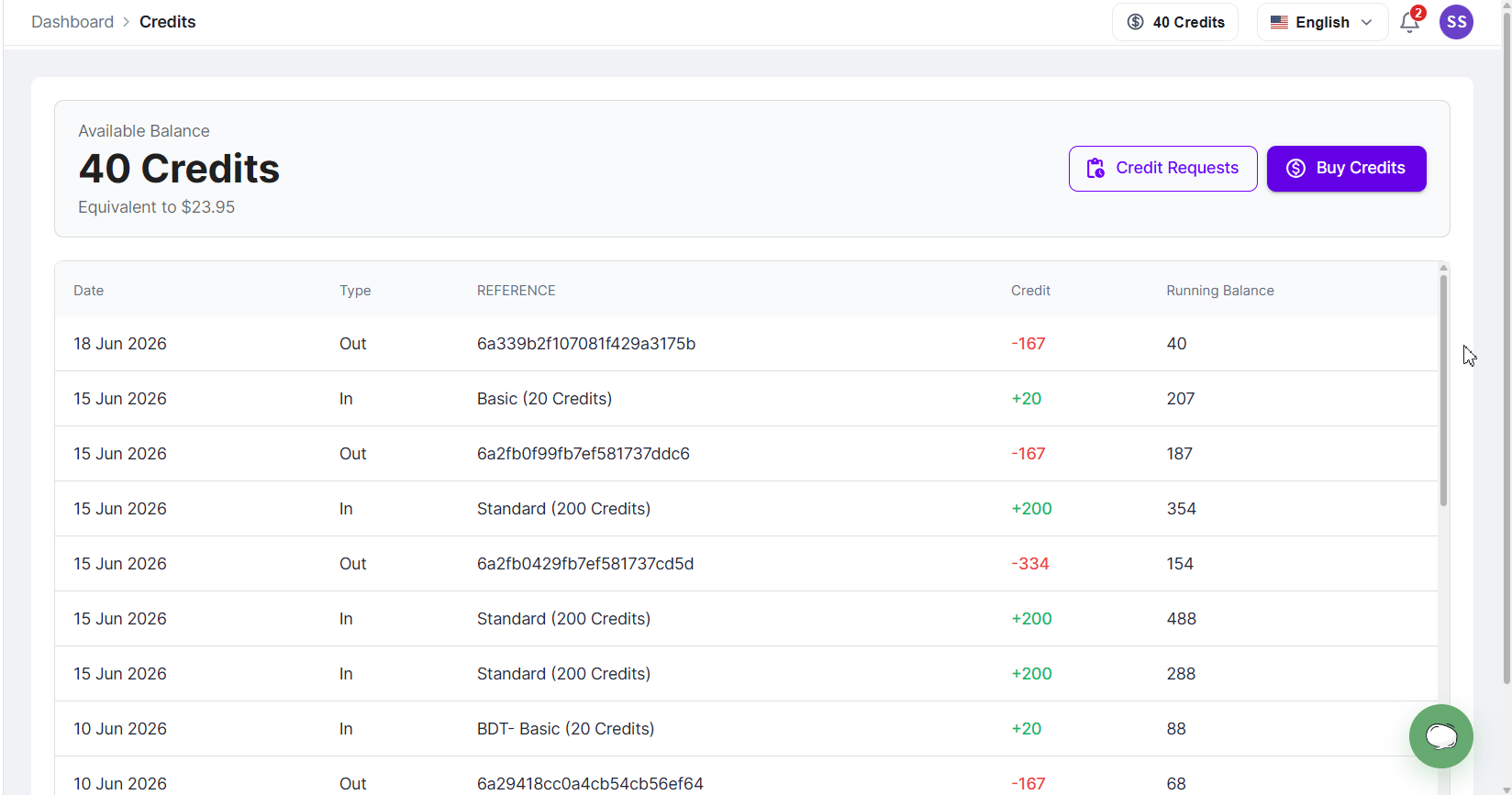
All credit activity is recorded on your Credits page.

Each transaction includes:

* Date
* Transaction type
* Reference
* Credit amount
* Running balance
<img src="https://mintcdn.com/agencyhandy-36ccbd64/cRyyPqqchPNXUz0A/images/credits/client-credit-history.png?fit=max&auto=format&n=cRyyPqqchPNXUz0A&q=85&s=155ca4de53146b9159c8b5f17d5a26d9" alt="Credit transaction history table" width="1648" height="867" data-path="images/credits/client-credit-history.png" />

<p style={{textAlign: 'center'}}>*Credit transaction history table*</p>

**Transaction types:**

* **In**: credits added to your account (credit package purchases, approved credit requests).
* **Out**: credits deducted from your account (service purchases, invoice payments).

## Frequently Asked Questions

<AccordionGroup>
  <Accordion title="Why can't I see the Credits widget?">
    The agency has disabled credit payments for the workspace.
  </Accordion>

  <Accordion title="Why can't I purchase credits?">
    Credit payments may be disabled by the agency.
  </Accordion>

  <Accordion title="Why don't I see the Buy with Credit option?">
    The agency may have disabled credit payments, you may not have enough credits, or the service may not support credit payments.
  </Accordion>

  <Accordion title="Why don't I see the Pay with Credit option on an invoice?">
    The agency may have disabled credit payments or your available credit balance may be insufficient.
  </Accordion>

  <Accordion title="When are credits added to my account?">
    Credits purchased through Stripe and PayPal are added immediately after successful payment. Credits purchased through Bank Transfer or Cryptocurrency are added after agency approval.
  </Accordion>

  <Accordion title="Can I view all my credit transactions?">
    Yes. All credit purchases and deductions are available from the Credits page.
  </Accordion>

  <Accordion title="What do In and Out transaction types mean?">
    **In** indicates credits added to your account.

    **Out** indicates credits deducted from your account.
  </Accordion>

  <Accordion title="What happens if my credit request is rejected?">
    No credits are added to your balance. You may contact the agency for more information regarding the request.
  </Accordion>

  <Accordion title="Can I use credits for both services and invoices?">
    Yes. Credits can be used to purchase services and pay invoices whenever credit payments are enabled and sufficient credits are available.
  </Accordion>
</AccordionGroup>
